

Search engine optimization (SEO) plays a crucial role in improving the visibility of a website in search engine results. One important aspect of SEO is On Page SEO, which focuses on optimizing the elements within a webpage to help search engines better understand the content.
For website owners who use WordPress, implementing On Page SEO can be relatively straightforward. WordPress provides a flexible content management system along with various SEO plugins that simplify the optimization process.
By applying proper On Page SEO techniques, you can improve your website’s search engine rankings, attract more organic traffic, and enhance the overall user experience.
In this guide, we will explain how to implement On Page SEO on a WordPress website using the SEOPress plugin, including how to install the plugin, configure it properly, and optimize your pages effectively.
Installing SEOPress Plugin on WordPress Website
To start optimizing your website, the first step is installing an SEO plugin.
There are a lot of SEO Plugins in the WordPress repository, yet you will just need one of them. Installing more than one SEO plugin is useless, since it can cause plugin incompatibility and might break your SEO instead.
The reason why we choose SEOPress as our SEO Plugin is because it is easy to use for beginners, lightweight, yet relatively powerful compared to others. Apart from it has a cool name.
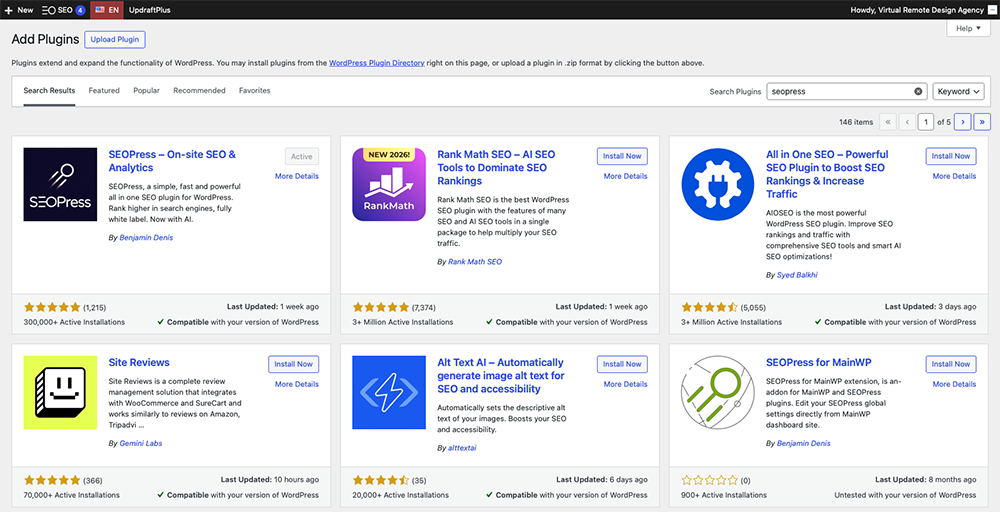
Below are the steps to install SEOPress plugin on your WordPress Website :
- Log in to your WordPress account and navigate to Plugins → Add New.
- In the search bar, type SEOPress.
- Click Install Now and Activate it once the plugin is installed.
Once the plugin is activated, you will be redirected to the plugin setup wizard and you will be guided to complete the setup.
SEOPress Setup for Your WordPress SEO
After installing and activating SEOPress, the next step is configuring the plugin itself.
To be honest, if you follow the instructions carefully, you will find the setup is easy. Below are some information you might need to prepare to complete the setup :
1. General website information and social accounts
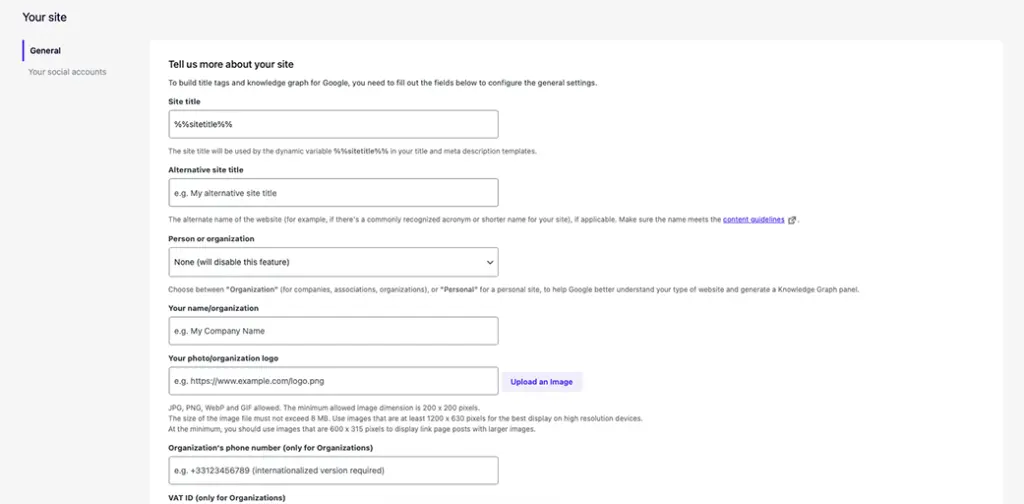
In this phase, you will need to enter basic information such as:
- Site title
- Organization or person
- Organization or person name
- Photo or organization logo
- Social media profiles, for instance Instagram, Facebook, X, etc.
Once you have completed filling all of these information, you can click Save and Continue, and you will move to the next step.
2. Setup indexing for post types, archives, and taxonomies
Second step is allowing which post types, archives, and taxonomies you want to index on search engines.
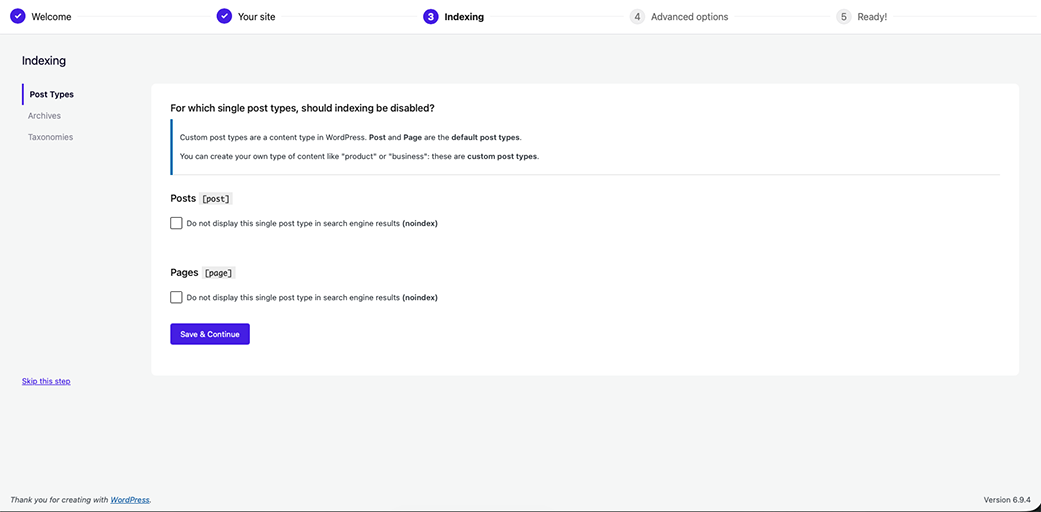
Usually, posts and pages are post types you want to index on search engines. However, if you want to exclude certain post types for example, you can just check the noindex box.
After deciding all of them, you can click Save and Continue and you will move to the next step.
3. Enable XML sitemap
Actually the next step of the setup wizard is Advanced Options, where you can set alt text on inserted image and remove categories in permalink. You can do what you want with it or even skip this step and complete the setup.
After completing setup wizard, you can enable XML sitemaps to help search engines crawl and index your website pages more efficiently.
Here is how you can enable it :
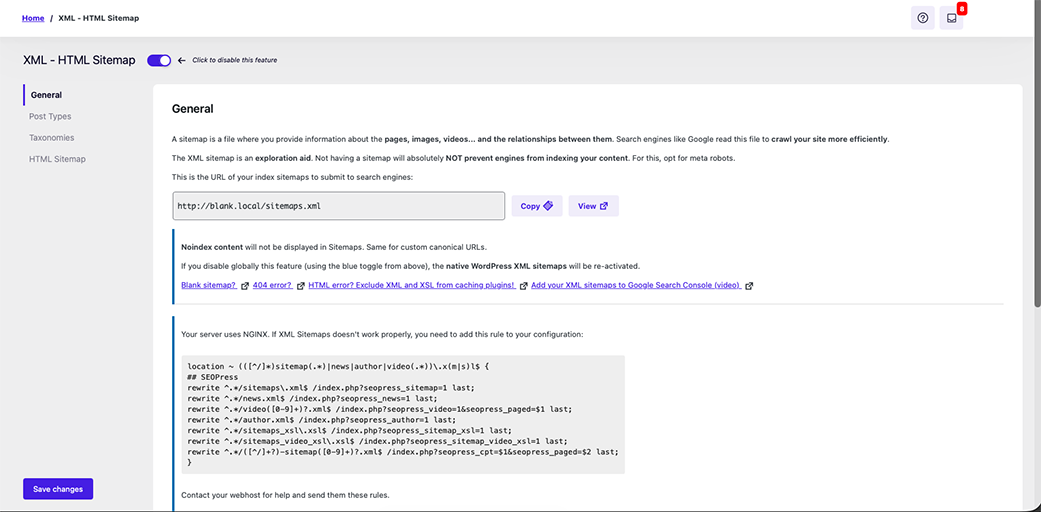
- Go to SEO → XML – HTML Sitemap
- Switch on XML – HTML Sitemap feature
You can also setup what post types and taxonomies you want to include in XML sitemap.
After you’re done setting up all of it, click Save Changes and then submit the sitemap URL to Google Search Console. This helps search engines discover new content on your website faster.
4. (Optional) Configure title and meta settings
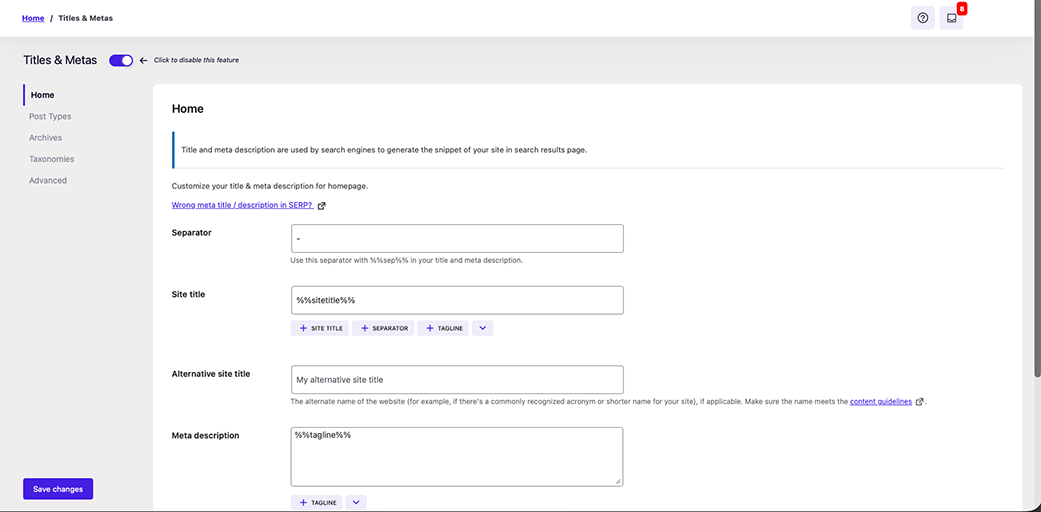
In SEOPress, you can define a template for titles and meta descriptions.
Just go to SEO → Titles & Metas and switch on Titles & Metas Feature. From there, you can set both titles and meta descriptions template for home page, post types, archives, and taxonomies.
Remember that proper title and meta settings improve how your pages appear in search engine results.
How to Optimize Your Page Using SEOPress Plugin
Once the plugin is configured, you can start optimizing individual pages or posts.
Basically, you can refer to On Page SEO: Definition and Its Effective Optimization and implement all of the tactics for each element.
But first, you need to go to your page where you want to optimize the on page SEO.
SEO meta box group
On the bottom of the page editor, you will find Meta Boxes where you can expand and see the details inside.
If you have already installed SEOPress, you will see there are two groups of meta boxes, which are SEO and Content Analysis.
In the SEO meta box group, you can adjust four things, they are Title settings, Social, Advanced, and Redirection.
1. Title Settings
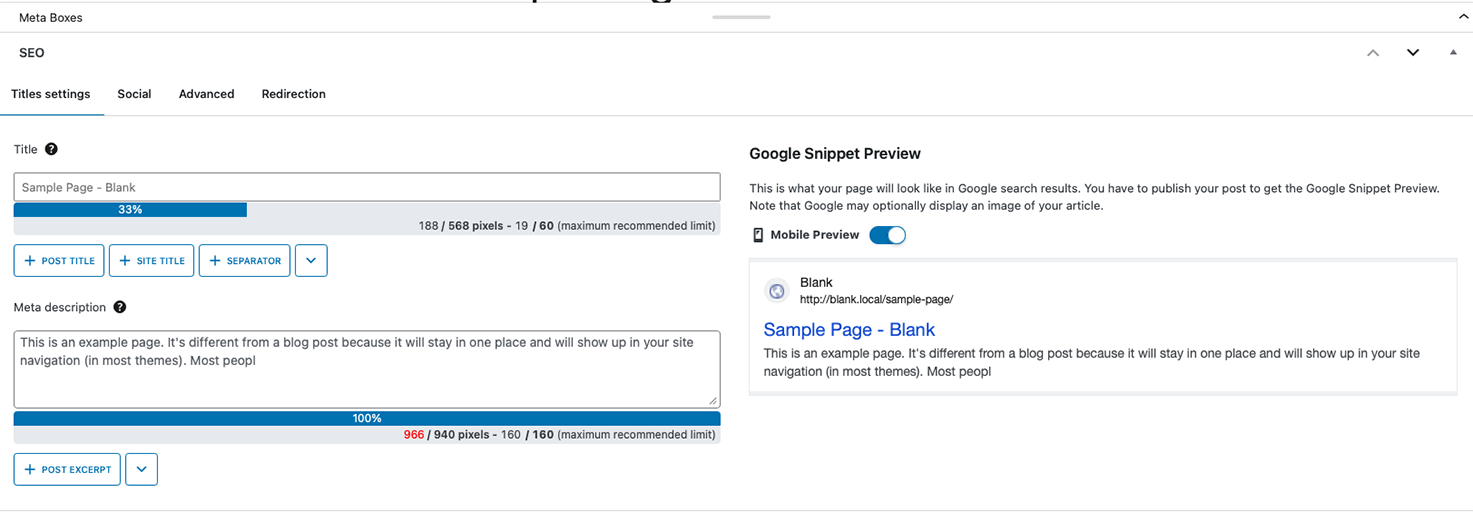
Title settings contains the title itself and meta description, which each of them has recommendations on how long both title and meta description be. This will help your page look more compelling on search engine, and prevent it to show an uncompleted texts.
2. Social
Social tab handles on how a page will show if you share your page to a social media. This includes its title, description, and thumbnail.
3. Advanced
In this tab, you will find settings if you don’t want to display the page in search engine, follow links (nofollow), index images (noimageindex), and display a description in the search results (nosnippet).
You can also set canonical URL, select primary category, and freeze the last modified date for minor updates.
4. Redirection
This tab will manage all the redirection from the related page if any. You can set redirection type (like permanently or temporary) and also its URL redirection.
Content analysis group
This meta box group is the place where you can see the room of improvements for all of the on page SEO elements such as keywords, headings, permalink, etc.
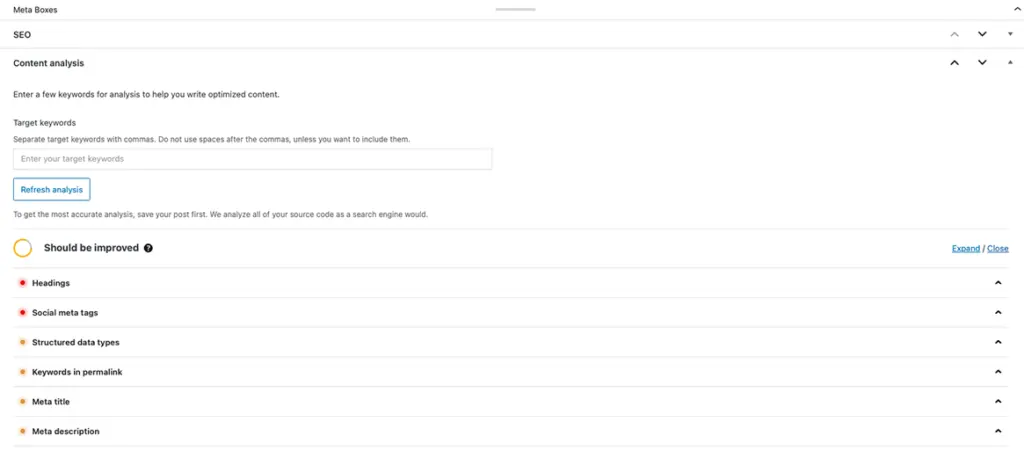
Content anaylisis group also indicates if a page should be improved SEO wise by showing its doughnut diagram.
For example if you have an orange bullet beside Meta title element, it means you need to improve it on the related content, and so on, and so on.
By following our article On Page SEO: Definition and Its Effective Optimization, you will have a clear guide on how to fill this boxes so you can optimize your page on the search engine.
Common On Page SEO Mistakes in WordPress
Specific to WordPress case, there are some common mistakes when it comes to optimizing on page SEO, they are :
1. Installing more than one SEO Plugin
Before you decide to use an SEO plugin for your WordPress website, you better to research each of alternatives. One plugin might give you feature A for free, but another might include it as premium one.
One plugin might be a good for all, but it’s relatively heavy. Another might only serve basic features, but lighter.
As we mentioned in the paragraph before, installing more than one SEO plugin will just a waste of resource, and it might mess up your setup.
Choose one and stick to it. Because changing SEO plugin in the future will require a lot of work to do.
2. Not submitting XML sitemap
While search engine can still crawl your website without it, XML sitemap helps search engine finds your URL faster, especially for new websites.
Therefore, submitting it would be very recommended.
Conclusion
Implementing On Page SEO on a WordPress website is essential for improving search engine visibility and attracting organic traffic.
By installing an SEO plugin such as SEOPress, configuring its settings properly, and optimizing individual pages, website owners can significantly improve their SEO performance.
With consistent optimization and quality content, your WordPress website can achieve better visibility in search engine results.
FAQ
Why choose SEOPress for WordPress SEO?
SEOPress is a powerful and lightweight SEO plugin that provides many advanced features for optimizing WordPress websites.
Some advantages include:
- clean and user-friendly interface
- support for XML sitemaps
- integration with Google Analytics
- structured data support
- no advertisements in the interface
These features make SEOPress a popular choice among WordPress users.
Are there alternative SEO plugins for WordPress?
Yes, several other SEO plugins are widely used.
Popular alternatives include:
- Rank Math
Offers advanced SEO tools and automated optimization features. - All in One SEO
A comprehensive SEO plugin suitable for beginners and experienced users.
Each plugin provides different features, so website owners can choose the one that best fits their needs.