



In a WordPress ecosystem, a plugin isn’t an alien. If you have ever read or at least watched videos about WordPress, the author or creator may sometimes discuss about this term. In this article, we would like to share about definition, examples, and how to install a plugin into a WordPress website.
What is a WordPress Plugin?
WordPress plugin is an additional tool to help us adding new functionalities to a WordPress website. This tool does not exist by default in a WordPress website, yet if we need one, we can install it from the WordPress repository.
Kinds of WordPress Plugins and Its Examples
In the WordPress repository, there are tens of thousands plugins which we can use to add website functionalities. Here, we will categorize some of the most used plugins in WordPress based on VRDA version.
Page Builder Plugin
Page builder plugin is a plugin which used for developing pages in a WordPress website. Even though WordPress has already provided a default page builder which is Gutenberg, sometimes developers want an additional page builder to fulfill their needs.
One of the examples of a page builder which VRDA commonly use is Avada.
Block Plugin
Block plugin also has a function to enhance the appearance of pages in a WordPress website, just like page builders do. The difference is that block plugins use Gutenberg as their page builder, not standalone. Developers will be provided with more blocks to accommodate their needs to develop website pages.
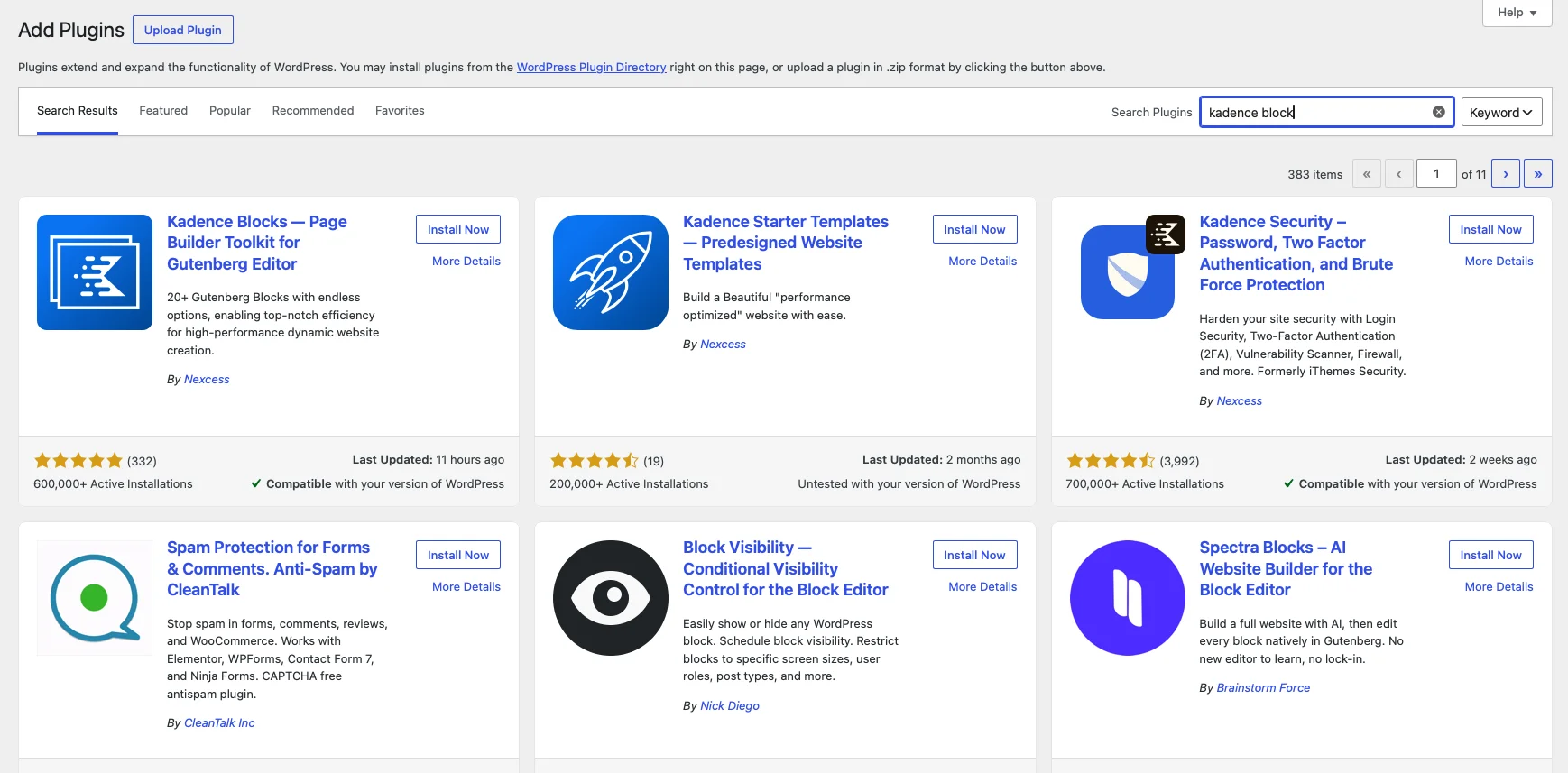
One of the examples of a block plugin which VRDA commonly use is Kadence.
SEO Plugin
SEO Plugin is used to help developers set and manage SEO in a WordPress website. In our opinion, a SEO plugin is mandatory in every WordPress website because it has a lot of functionalities and it’s very hard to be replicated even if we create it on our own.
Examples of SEO plugin which VRDA commonly use is Google Search Console and SEOPress.
Security Plugin
A security plugin gives protection to your WordPress website. Some of the things it can do are blocking suspicious IP and changing your WordPress login page.
One of the examples of a security plugin which VRDA commonly use is WordFence.
The Other Plugins
Just like we know, there are tens of thousands of WordPress plugins in its repository. The categories are not limited by what we have stated above, indeed. For example transition/animation plugin, form plugin, email plugin, etc. which VRDA can not mention all of them in this article.
How to Install a WordPress Plugin
Basically, plugin installation is easy. Here are the steps :
1. Visit Plugin -> Add Plugin
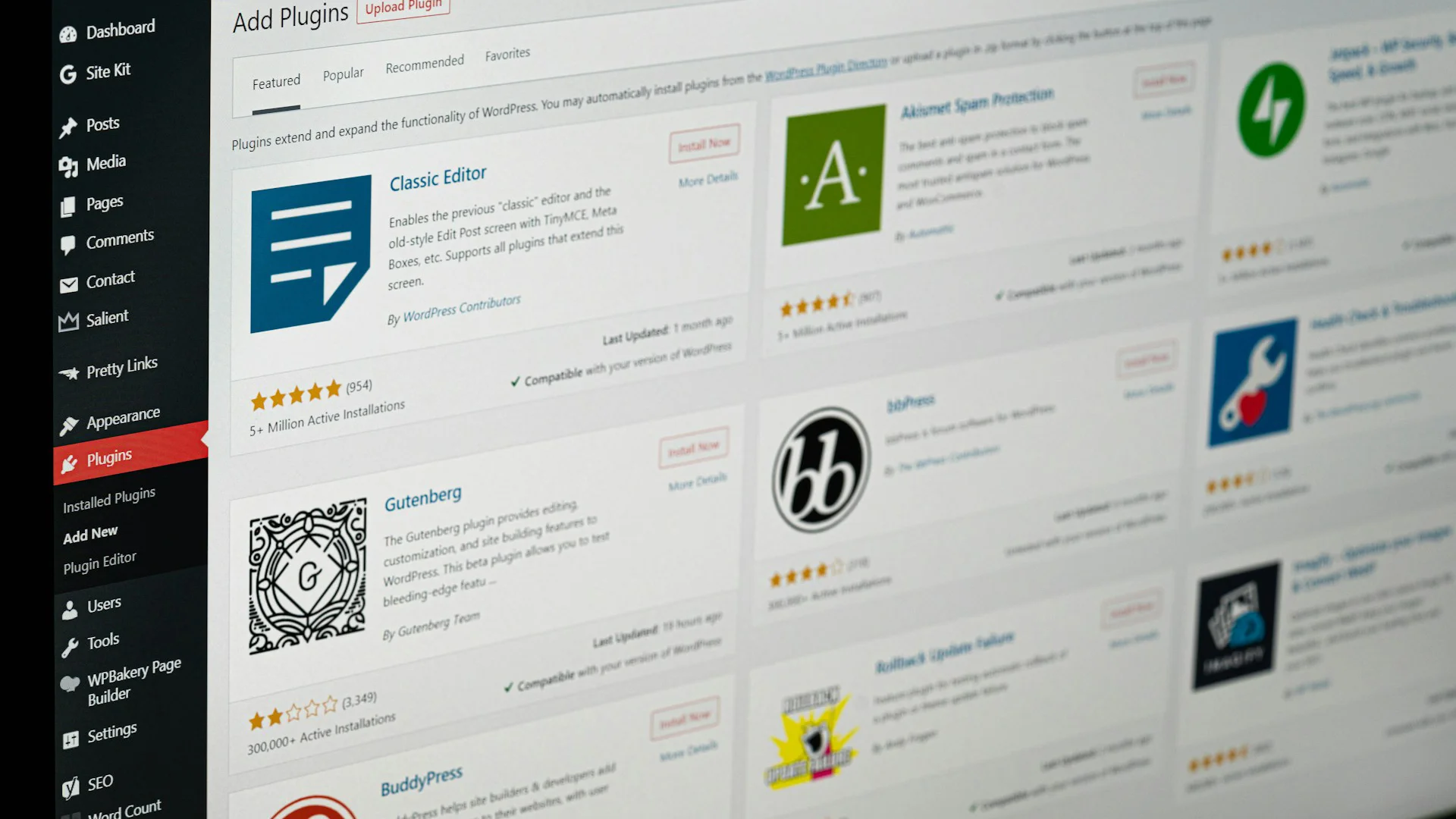
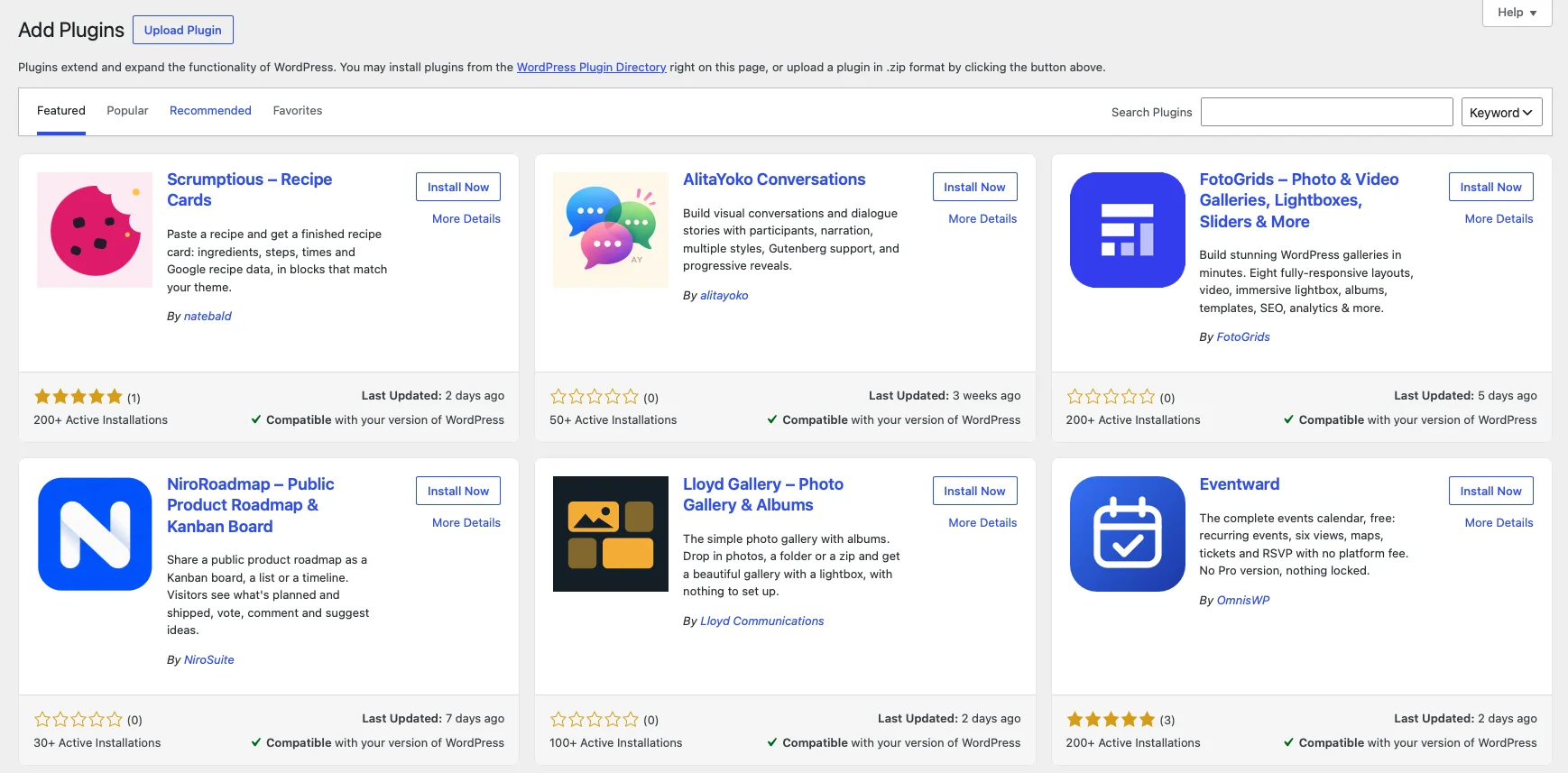
Make sure that you are logged in to your WordPress website. After that, choose from Plugin menu -> Add Plugin
2. Search the Plugin
After already in Add Plugin page, you can search the plugin that you want through search bar in the top right corner. You can search based on anything, such as based on the plugin name, its function, etc. You can also filter the plugins based on the popularity and WordPress recommendations.
3. Install and Activate the Plugin
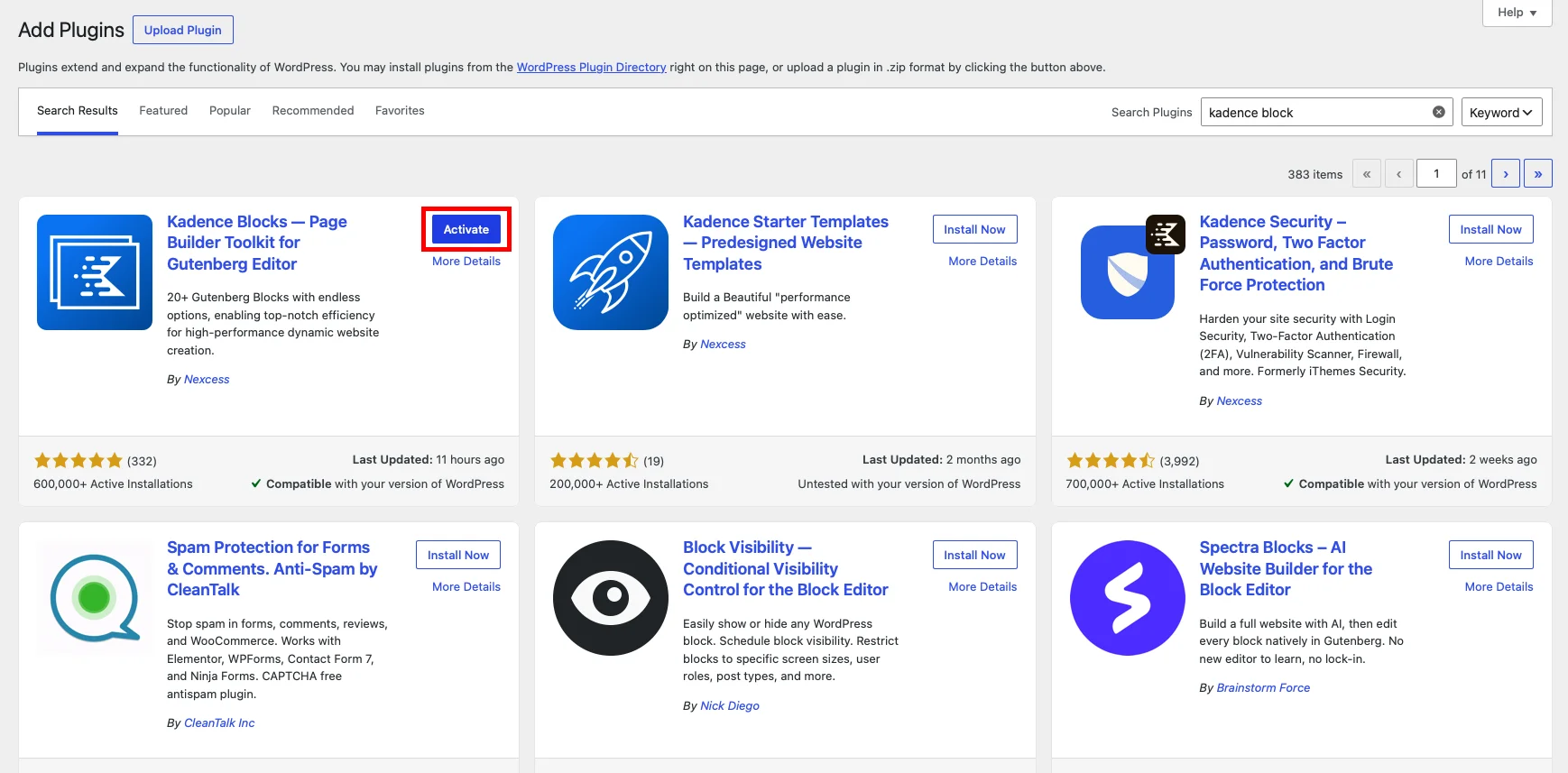
Click Install in a plugin you want to add to your website. Wait for it until the Activate button appears. Click it and the plugin will be activated in your website.
Rumors : WordPress Plugins are the Cause of Hacked Website?
We might have ever heard of news that plugins caused a website got hacked. In VRDA opinion, this statement should not be taken carelessly because there are a lot of factors influencing. As a developer, you can do these things to prevent security vulnerabilities in a WordPress plugin :
- Install plugin from a trusted developer
Installing a plugin which is developed by Google relatively more secure than a plugin which is developed by newly individual developers. - Update your plugin
The key of a WordPress security is always maintained. The best practice of updating plugin is by updating in your staging website first before moving to the production. This is done to anticipate if there is a bug or incompatibility after the update. Actually, you can also set the plugin to auto-update, however this is not recommended because if the bug exists, the tracking will be harder compared to manual update. - Uninstall and delete unused plugins
Alongside removing vulnerabilities, uninstalling and deleting unused plugins can improve website preformance. It’s also very recommended not to use too many plugins with the same kind.
Conclusion
A WordPress plugin is an additional tool to help us adding new functionalities to a WordPress website. There are tens of thousands of plugins in the WordPress repository, but the most commonly used plugins are page builder plugin, block plugin, SEO plugin, and security plugin. Every plugin has to be installed to a WordPress website before it’s used. Then after being installed, a plugin still needs to be maintained and updated to keep it from vulnerabilities. Hope it helps!